I spent the last week feeding the same three video files into four AI video editors — a generated product clip where the background came out wrong, a scene where I wanted to swap one subject, and a short ad where a single beat needed fixing. The results separated into two completely different kinds of tools, and that split matters more than any demo reel.
Here is the thing about “AI video editor” in 2026: the phrase now means two opposite things. One camp edits the timeline — trim clips, stitch scenes, add captions. The other camp edits the footage itself — swap a subject, change a background, fix the one part of a generated video you are unhappy with. If you buy the wrong camp, you pay monthly for a trimmer when what you needed was a tool that fixes what is in the shot.
That second camp is where the interesting work is happening, and it is what this comparison is really about. If you are a marketer, creator, or small business owner trying to pick an AI video editor without wasting budget on the wrong tool, this is for you. A true generative AI video editor fixes what is in the frame; a timeline editor only rearranges it.
Quick note: Pricing and free tiers change. Check each platform before committing.
Quick Comparison: AI Video Editors at a Glance
| Tool | Best For | Standout Feature | The Catch |
| VisualGPT | Fixing the parts of a video you are unhappy with | Text-to-video generation plus spot editing in one platform | Editing requires a paid plan — no free tier |
| Runway | Mask-and-replace editing | Aleph prompt-to-edit with in-painting | Credits vanish fast; mask workflow has a learning curve |
| Adobe Firefly | Enterprise-safe generative fill | Mask, type, replace inside Premiere Pro | Needs Creative Cloud; slower than dedicated tools |
| CapCut | Traditional timeline editing | Strong free tier, auto-captions, templates | Cuts and captions only — it cannot change what is in the shot |
What to Look For in an AI Video Editor
Most roundups rank these tools by how pretty the output looks. A cinematic generated shot scores a 10. A cleanly replaced background that took two minutes scores a 6.
That is useless if you are picking a tool to fix real footage.
When I evaluate an AI video editor, I care about five things:
- What it can actually change. Can it swap the subject, replace the background, or rewrite a scene — or does it only trim and caption? This is the first question for any AI video editor.
- Speed to a usable result. Can you go from raw footage to edited output in under 15 minutes?
- Editing control. Can you target a specific region, object, or subject without redoing the whole shot?
- Commercial safety. Is the output safe to use in ads and client work?
- Real free-plan value. Can you finish one real project before hitting a hard stop?
The distinction between timeline editing and generative editing is the whole game. A tool that only trims and captions is not going to remove a photobomber or change a product’s color. If your work requires fixing the parts of a generated video you are unhappy with, you need a generative AI video editor — not a trimmer. That is the entire reason this comparison exists.
Related : 25 Best Canva Alternatives for Great DIY Graphic Design
VisualGPT — Best for Fixing What Is Wrong in Your Video
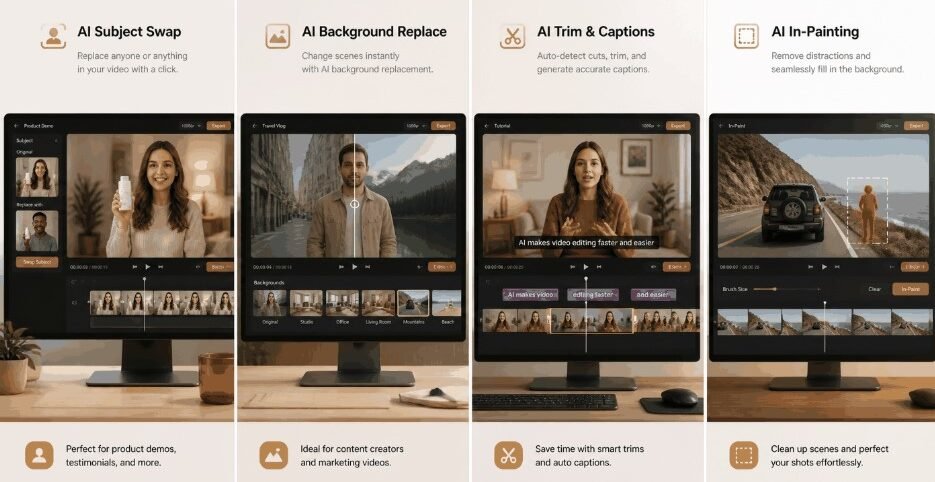
VisualGPT is the strongest option in this group for fixing the parts of a video you are unhappy with. Here is the scenario it solves: you generate a video, and most of it is right — but the background looks off, or the subject is wrong, or one detail needs changing. Instead of regenerating the whole thing from scratch and hoping the next roll is better, you open the editor and fix just that spot. The AI model swaps the subject, replaces the background, or rewrites that one beat while keeping everything else intact.

What It Does Well
The capability that sets it apart is seamless spot replacement. You take a generated clip and swap a subject cleanly — the AI regenerates only that area so the change blends into the surrounding footage rather than looking pasted on. Change a background the same way: describe the new setting and the model rebuilds it behind the subject, keeping lighting and motion consistent.
The range extends to scene-level fixes. If a short video needs a different action, a changed prop, or a rewritten beat, you modify that part of the scene directly — no re-shoot, no re-generating the entire clip, no crossing your fingers that the next roll fixes it.
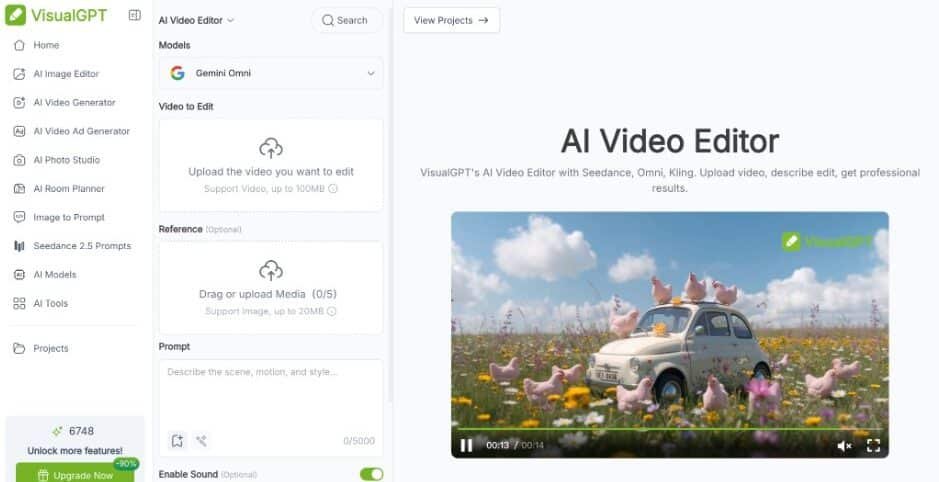
For a marketer or creator, this changes the workflow. You are no longer stuck between two bad options — accept a flawed shot, or re-generate and hope. With this kind of AI video editor, you optimize the exact point you are unhappy with and keep the rest. That is a real time and cost saving that both timeline editors and pure generators simply cannot offer.
One thing worth knowing up front: VisualGPT’s editing is a paid capability, not a free tier — the editor is part of the platform’s video toolkit. But the same platform also does text-to-video generation, which means you can generate a clip and then fix the parts you are unhappy with, all in one place. Compared to a mask-first AI video editor, the spot-fixing flow is noticeably more direct — you point at what is wrong, describe the fix, and the model handles the rest.
What impressed me most is how directly the AI video editor targets the exact spot you want to change. Most tools in this category make you mask a region and write a careful prompt to nudge the model. VisualGPT is built around the fix you actually came for — “this part is wrong, change it” — so the workflow is closer to “describe what you want” than “paint a mask and hope.”
Where It Falls Short
The interface is functional rather than polished. If your workflow is deep inside Adobe’s ecosystem, VisualGPT asks you to work outside it. The editor is a paid capability with no free tier, and higher-resolution output or priority edits cost more — factor that into your budget if you plan to edit at volume.
Output quality varies by model and prompt. For paid ads or client work, treat the first edit as a draft — review the seams where the change meets the original footage, and iterate before publishing.
A Practical VisualGPT Spot-Fixing Workflow
- Upload the generated clip and find the part you are unhappy with.
- Select the subject, background, or detail you want to replace.
- Describe the fix — the new subject, setting, or corrected beat.
- Preview the result and refine the prompt if the blend looks off.
- Export in the format your platform needs.
Who Should Use VisualGPT
Marketers and creators who generate videos and want to fix the parts they are unhappy with — swap a product, replace a background, refine one beat — without re-generating the whole clip. E-commerce sellers optimizing generated product shots and lifestyle scenes. Content teams that need a generative AI video editor to polish their output alongside generation.
Runway — Best Mask-and-Replace Editing
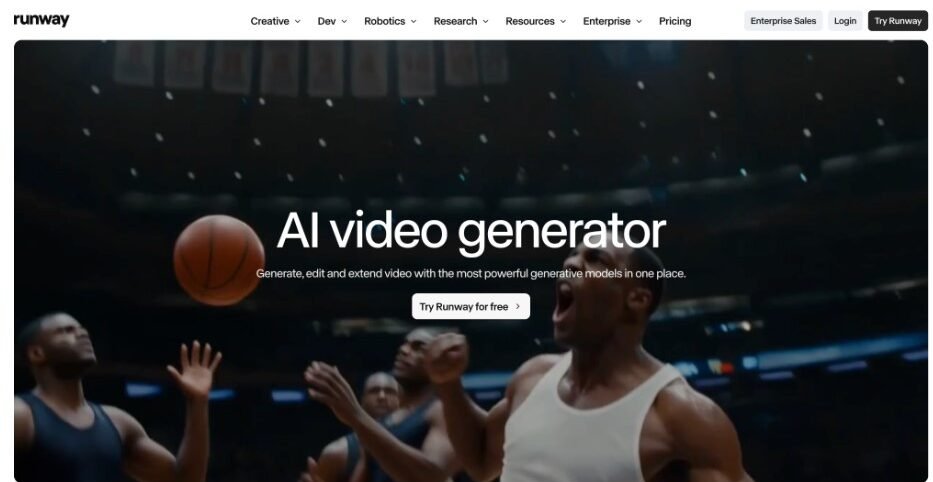
Runway is the best-known name in generative video, and its Aleph editing model is the closest direct comparison to what VisualGPT does.
What It Does Well
Aleph moves beyond generation into modification. You mask a specific area — a car driving the wrong way, a person in the shot, a background element — and type a prompt like “empty highway” or “clean studio backdrop.” The model tracks the camera and perspective of the existing footage and in-paints the masked region, preserving the rest of the shot. It is the video equivalent of Photoshop’s content-aware fill.
For precise, region-targeted fixes, Runway is strong. When you need to erase one specific element from a moving shot and keep everything else intact, the mask-and-prompt workflow gives you fine control.
Where It Falls Short
Runway’s workflow is mask-first. You have to identify and mask the exact region, then write a careful prompt, then iterate. It is powerful but slower, and it leans on prompt skill. Credits also burn fast — serious projects need the higher tiers, and you will re-roll edits that do not land on the first try. Runway is a generation-and-edit studio, not a purpose-built subject-swap or background-replace tool.
Who Should Use Runway
Filmmakers and motion designers who need precise, region-level in-painting on complex shots. Not the pick if you want a fast, purpose-built flow for swapping subjects or changing backgrounds on marketing footage.
Adobe Firefly — Best Enterprise-Safe Generative Fill
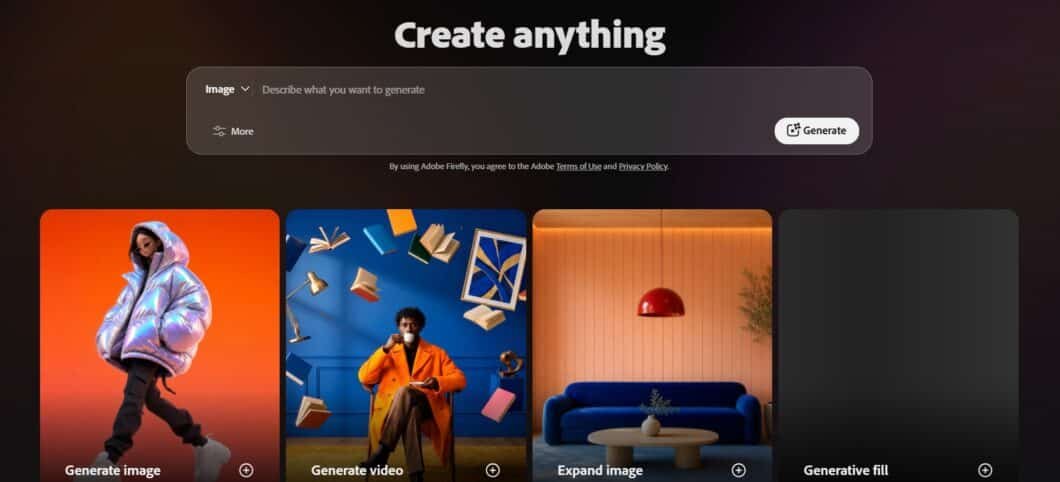
Adobe Firefly’s video tools are built for professionals already inside the Adobe ecosystem, and its Generative Fill is the enterprise-safe option in this group.
What It Does Well
Firefly Video Generative Fill lives inside Premiere Pro. You mask an object or region, type a prompt describing what you want gone or replaced, and Firefly in-paints across the selected time range. Remove a person from a crowd, replace a sign, change a backdrop — all without exporting to another app. The generated layers come back as nested sequences with mattes, so you can still re-grade and tweak them.
The real moat is commercial safety. Firefly Video is trained only on licensed Adobe Stock and public domain content, and Adobe offers IP indemnification to enterprise customers. For brands, agencies, and broadcasters that cannot risk a copyright claim, this is the default choice.
Where It Falls Short
Firefly requires a Creative Cloud subscription, and it is slower than dedicated generative editors — around 5-15 seconds per frame on capable hardware. It also assumes you already know Premiere Pro. If you are not in the Adobe ecosystem, the setup cost is real. And like Runway, it is mask-first: you paint a region, then prompt. It is a utility inside an NLE, not a standalone subject-swap tool.
Who Should Use Adobe Firefly
Professionals already in Premiere Pro who need enterprise-safe generative fill, especially for high-stakes client work. Not the pick for fast, standalone scene editing outside the Adobe ecosystem.
CapCut — The Traditional Timeline Editor (For Reference)
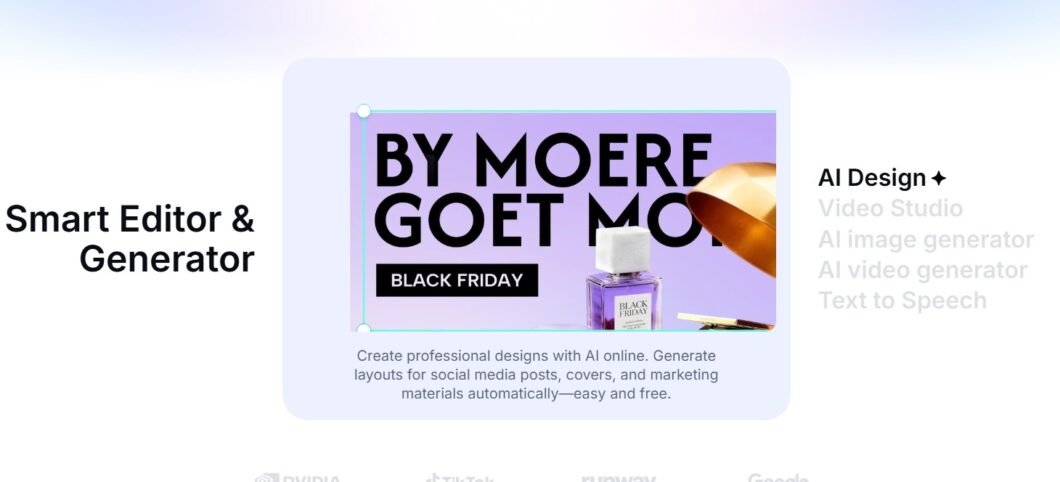
CapCut is here as the baseline for comparison, because most people asking “which AI video editor” are actually thinking of this kind of tool.
What It Does Well
Auto-captions, trending templates, transitions, background removal, and text-to-speech — all with a strong free tier, on mobile and desktop. For trimming, stitching, and captioning short-form video, CapCut is fast and genuinely good.
Where It Falls Short
CapCut edits the timeline, not the footage. It cannot swap a subject, change a background behind a moving subject, or rewrite what happens in a scene. Background “removal” here means cutting out a subject for a green-screen effect — it is not generative replacement. If your footage needs its content changed, CapCut is the wrong tool entirely.
Who Should Use CapCut
Solo creators and social teams doing high-volume short-form trimming and captioning. Not the pick if you need to change what is actually in your shots.
Which AI Video Editor Should You Choose?
Pick Runway if you need precise, mask-level in-painting on complex shots and are comfortable with prompt work. Pick Adobe Firefly if you live in Premiere Pro and need enterprise-safe generative fill. Pick CapCut if your work is pure timeline editing — trimming and captions.
Pick VisualGPT if your AI video editor needs are about fixing the parts of a generated video you are unhappy with — swapping a subject, changing a background, refining one beat — without re-generating from scratch, the mask-heavy workflow, or an Adobe subscription. That is the difference between a spot-fixing AI video editor and everything else on this list.
A 15-Minute Test Before You Choose
Do not pick from screenshots. Run this test with one real clip:
- Minutes 0-3: Upload the footage and identify what needs to change.
- Minutes 3-8: Swap the subject or change the background.
- Minutes 8-12: Refine the result — check the seams where the edit meets the original.
- Minutes 12-15: Export the final video.
Score each tool on what it can change, speed, control, and free-plan friction. Multiply what it can change and speed by two — those predict real workflow fit better than any demo reel.
Before publishing, check:
- Does the edit blend seamlessly, or are there visible seams?
- Is lighting and motion consistent with the original footage?
- Is the output safe to use in ads or client work?
- Could you reproduce this edit next week without starting over?
Final Thoughts
What a week of testing made clear: “AI video editor” is really two products wearing one name. One trims your timeline. The other fixes what is in your footage. If you only needed trimming, CapCut does it free. If you needed to fix what was already generated, only a generative AI video editor gets you there — and that is a different decision entirely. Knowing which kind of AI video editor you need is the single most important step before you spend a dollar.
The tools that save real money are the ones that remove the need to re-generate or re-shoot. When you generate a video and one detail comes out wrong, you used to have two bad options: accept it, or start over and hope. A spot-fixing AI video editor gives you a third option — fix just that detail and keep the rest. For marketers and sellers who live and die by their product footage, that is the whole game — and it is exactly what separates a generative AI video editor from a trimmer.
If you have not tested a generative AI video editor that swaps subjects and changes backgrounds directly, pick one real clip and run the 15-minute test above. Upload a generated shot you are unhappy with, fix the subject, change the background, and measure how long it takes from finding the flaw to a usable edit. That is the test that separates a real AI video editor from a trimmer.